
Photography
How Do I Increase the Resolution of an Image? Free and Practical Methods

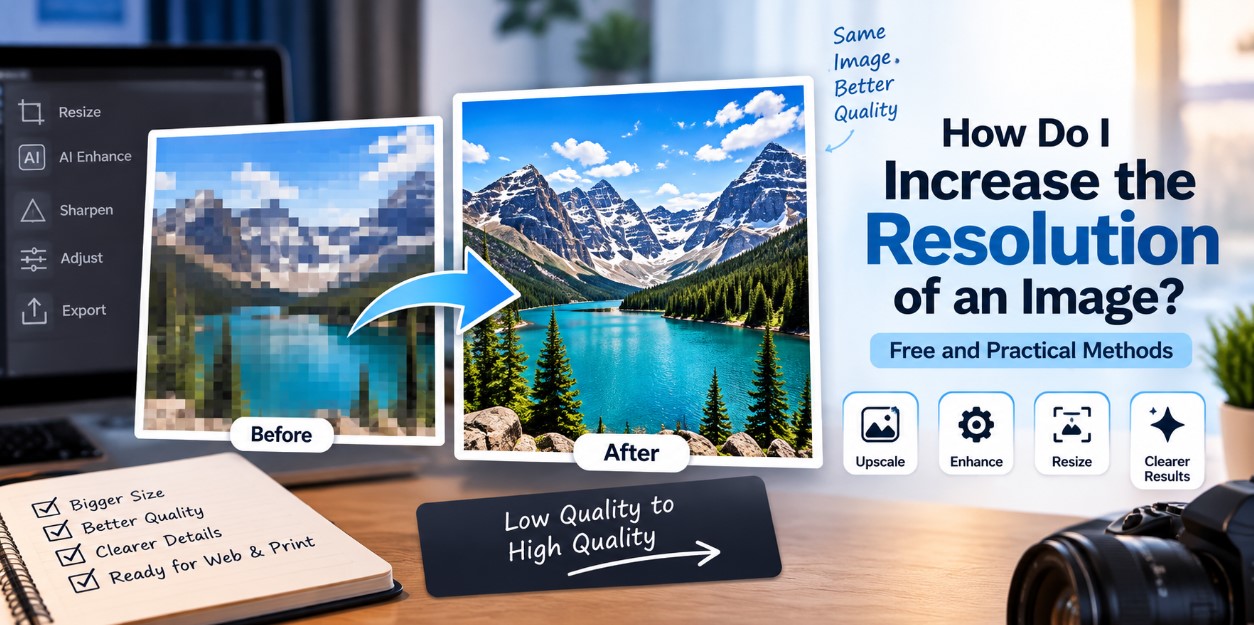
A low-quality photo can become a problem when you need to use it on a website, social media post, presentation, or printed document. The picture may look acceptable when small but become blurry or pixelated when enlarged.
Fortunately, there are several ways to improve an image, including free tools and built-in editing features. However, increasing pixel dimensions and recovering genuine lost detail are not the same thing. Understanding this difference can help you get better results.
What is Image Resolution?
Digital images are made from pixels. Their dimensions are commonly described using width and height.
For example:
| Image dimensions | Total pixels |
| 640 × 480 | About 0.3 megapixels |
| 1280 × 720 | About 0.9 megapixels |
| 1920 × 1080 | About 2.1 megapixels |
| 3840 × 2160 | About 8.3 megapixels |
An image containing more pixels can generally display more detail, provided the original source actually captured that detail.
Resolution can also refer to PPI, or pixels per inch, especially when preparing images for printing. DPI technically describes output dots used by printers, although the terms DPI and PPI are sometimes used interchangeably in everyday discussions.
Why Does an Image Become Blurry When Enlarged?
Suppose you have a picture that measures 500 × 500 pixels and enlarge it to 2000 × 2000.
The original file does not suddenly contain four times as much real detail in each direction. Traditional resizing software has to create additional pixels based on the pixels already available. This process is called interpolation.
As a result, a heavily enlarged picture can appear:
- Soft or blurry
- Pixelated
- Less detailed
- Unnaturally sharpened
- Filled with compression artifacts
The lower the quality of the source, the harder it is to create a convincing larger version.
How Do I Increase the Resolution of an Image?
There are two main approaches: conventional resizing and AI upscaling.
Conventional resizing increases the pixel dimensions using mathematical interpolation. Most photo-editing applications can do this.
AI-based upscaling uses trained models to predict additional visual details while enlarging an image. It can produce more natural-looking results for some photographs, illustrations, and graphics.
A basic process is:
- Start with the highest-quality original available.
- Check its current pixel dimensions.
- Choose the dimensions required for your final use.
- Resize or upscale the picture.
- Apply light sharpening or noise reduction if necessary.
- Inspect faces, text, edges, and fine details carefully.
- Export it using an appropriate format and quality setting.
Avoid repeatedly resizing and recompressing the same file because this can reduce quality.
Can You Increase Image Resolution for Free?
Yes. Several applications provide free ways to resize pictures, although advanced AI features may have limitations or require paid plans.
For a simple resize, free desktop editors such as GIMP can change image dimensions using different interpolation methods. GIMP is free and open-source software.
Windows and macOS also provide basic image tools, although the available features vary by operating-system version.
Some online services offer limited AI upscaling for free. Before uploading personal or confidential photographs, check the service’s privacy policy and understand how uploaded files are handled.
For ordinary website graphics, simple resizing may be enough. AI enhancement becomes more useful when you need to display a small source image at a much larger size.
What is AI Image Upscaling?
AI upscaling is different from basic resizing.
A standard resizer estimates new pixels primarily from nearby pixel values. An AI system can analyze patterns in the picture and generate details it predicts should be present.
This can improve the perceived sharpness of:
- Portraits
- Product photographs
- Landscapes
- Old photographs
- Digital artwork
- Low-resolution web images
There is an important limitation: generated details are predictions.
If the original photograph contains an unreadable number plate, tiny face, blurred writing, or another missing detail, an AI enhancer cannot reliably reconstruct the original information. It may generate something that looks convincing but is factually incorrect.
This matters when images are being used as evidence, records, medical material, or for identification.
How Much Should You Upscale an Image?
The right amount depends on the source.
A 2× enlargement means that both the width and height are doubled. A 1000 × 1000 picture therefore becomes 2000 × 2000.
A 4× enlargement changes the same image to 4000 × 4000.
Higher enlargement does not automatically produce higher visual quality. If the original is extremely compressed, blurred, or out of focus, increasing its dimensions cannot fully restore information that was never captured.
Try a moderate enlargement first and inspect the result at normal viewing size as well as at 100% zoom.
How to Fix an Image Resolution Issue for a Website
Website images require a balance between visual quality and file size.
Uploading extremely large photographs can increase page weight and potentially slow loading. Using images that are too small can cause visible blurring on larger screens.
Choose dimensions appropriate for where the picture will appear. A full-width hero image normally requires more pixels than a small thumbnail.
Modern formats such as WebP and AVIF can provide efficient compression for web use, although compatibility with your website’s publishing system should be checked.
Responsive image techniques can also allow browsers to select an appropriate image size for the user’s device rather than downloading the largest version every time.
Image Resolution for Printing
Printing has different requirements from viewing an image on a screen.
A common high-quality printing target is around 300 pixels per inch, although the appropriate value depends on the printer, viewing distance, and type of print.
For example, an image intended to print at 10 inches wide at 300 PPI would ideally contain approximately 3,000 pixels across.
Large posters can sometimes use a lower effective PPI because people normally view them from farther away.
Simply changing a metadata field from 72 PPI to 300 PPI without adding pixels does not create new detail. Pixel dimensions and intended physical print size need to be considered together.
Should You Use JPEG, PNG, WebP, or Another Format?
File format also affects the final result.
JPEG works well for photographs and can produce relatively small files, but it uses lossy compression. Repeatedly saving a JPEG can introduce additional artifacts.
PNG uses lossless compression and is useful for graphics, screenshots, transparency, and images containing sharp interface elements, although files can be larger.
WebP supports both lossy and lossless compression and is widely used for web images. AVIF can offer strong compression efficiency and is increasingly used online.
The right format depends on whether your priority is photographic quality, transparency, file size, editing, printing, or website performance.
Can a Very Blurry Photo Be Made Completely Clear?
Not always.
Software can improve perceived sharpness, reduce noise, enlarge pixels, and sometimes generate convincing additional detail. It cannot guarantee recovery of information that does not exist in the source.
For the best result, try to find the original photograph before attempting enhancement. Images downloaded from messaging apps, screenshots, social media platforms, and websites may already have been resized or compressed.
The original camera file usually provides much more information for editing.
Final Thoughts
If you are wondering how to increase the resolution of an image, first identify what you actually need: larger pixel dimensions, better visual quality, or a file suitable for printing.
Basic resizing is useful when only the dimensions need to change. AI upscaling can improve the appearance of some small or low-quality pictures, but it cannot reliably recreate genuine details that were never captured.
Start with the best original file, enlarge it only as much as necessary, inspect the result carefully, and export it in a format suitable for its intended use. This approach can solve many common resolution problems without unnecessarily increasing file size or reducing image quality.
Check out: Best AI Tools for Image Generation in 2026


Top 10 Legacy Software Modernization Companies in 2026

Manikarnika Ghat in Varanasi: History, Cremation Rituals, Beliefs and Visitor Guide

How to Choose an Ergonomic Office Chair for Women That Actually Fits

Top Movies and TV Shows in the US: JustWatch September 2026 Streaming Charts

5 Best Indoor Air Quality & Mold Companies in Houston (2026)
-

 Celebrity1 month ago
Eileen Gu: Age, Parents, 2026 Olympics, Modeling Career, Height and Personal Life
-
 Tech1 month ago
18Moa – Website Directories, Online Discovery, and Safer Browsing
-

 Animals1 month ago
Understanding the American XL Bully Ban in the UK: Rules and Changes in 2026
-
 Tech2 months ago
WhatsApp Chat Theme Not Showing? How to Fix It