
Tech
WhatsMyDNS: How to check DNS changes and read the results
Check DNS changes with WhatsMyDNS, choose the right record type, and distinguish cached answers from configuration problems.

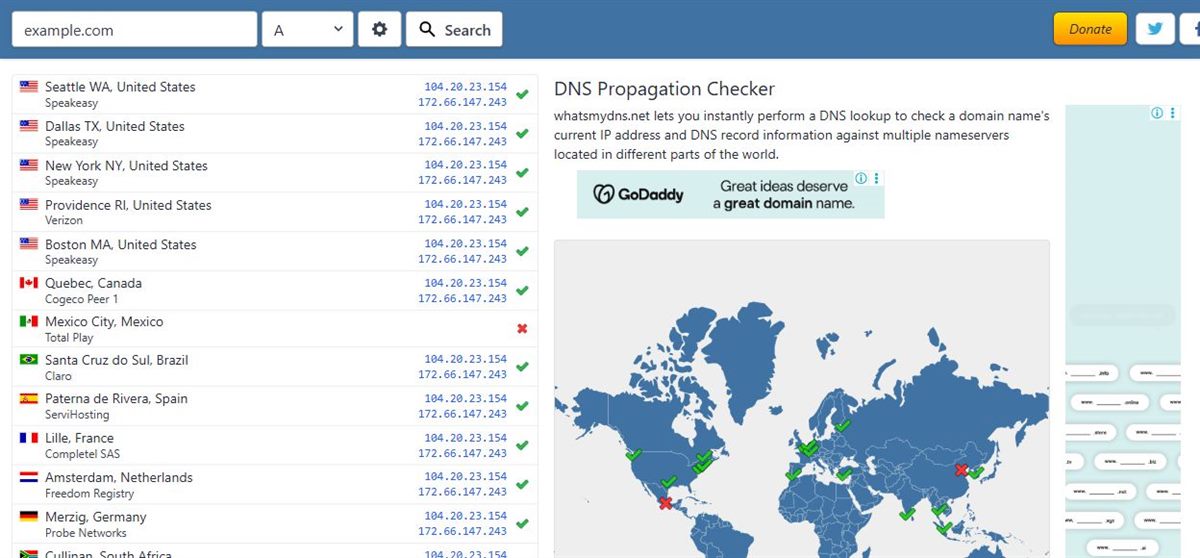
WhatsMyDNS is a browser-based DNS checker at whatsmydns.net. Enter a hostname, choose a record type, and it compares answers from DNS servers in different locations. That is useful after changing hosting, moving DNS providers, or adding a verification record. The results describe DNS responses. They do not certify that your website, email account, or application is working.
The most useful question to bring to the checker is specific: does this hostname return the value my provider requires? Keep the expected value beside the results. A green mark without that comparison can tell you that a lookup succeeded while leaving a configuration error unnoticed.
Start with the exact hostname and record type
Enter the DNS name you want to investigate, such as example.com or www.example.com. Leave out the protocol, page path, and tracking parameters. A URL such as https://example.com/contact includes information that does not belong in a DNS hostname lookup.
The root domain and its www hostname can have different records. A successful check of one does not establish the configuration of the other. The same applies to a mail hostname or a verification name supplied by a service.
| Record | What it identifies | Typical reason to check |
|---|---|---|
| A | An IPv4 address | A website’s hosting address |
| AAAA | An IPv6 address | IPv6 routing for a hostname |
| CNAME | An alias to another DNS name | A subdomain connected to a service |
| MX | Mail servers and their priorities | A change of email provider |
| NS | Authoritative nameservers | A change of DNS provider |
| TXT | Text stored in DNS | Domain verification or email-related configuration |
Choose the type specified in your provider’s instructions. Looking for a TXT verification token with the A selector will produce a result about an address, not the token you are trying to verify.
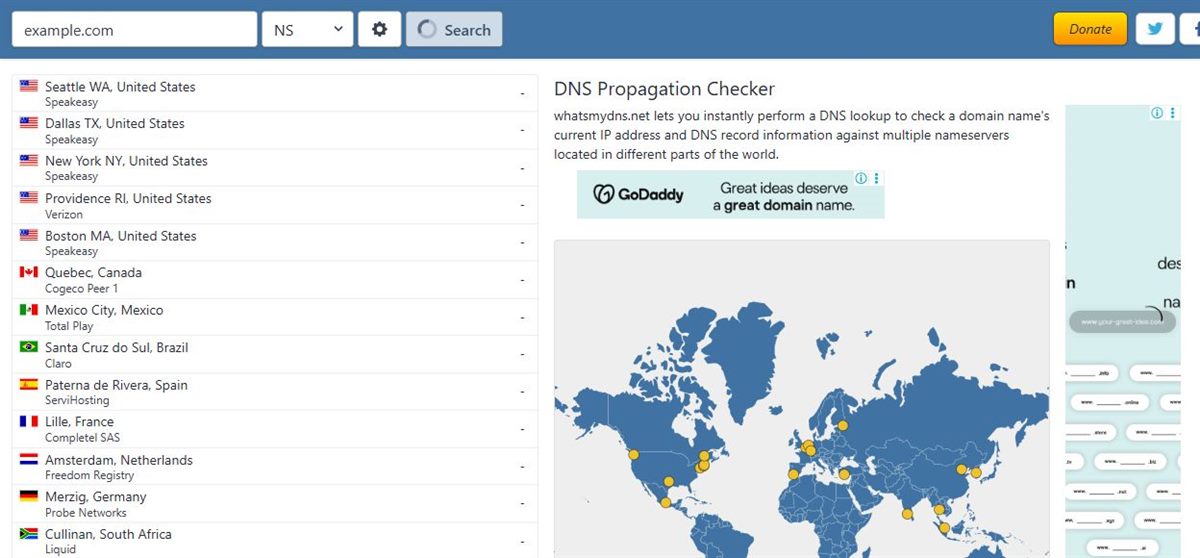
Run a check and inspect the returned values
- Copy the required hostname and expected value from the service you are configuring.
- Enter the hostname in WhatsMyDNS and choose the matching record type.
- Select Search and allow the location results to appear.
- Compare the returned values with the expected value, including the hostname and any priority where relevant.
- Record the time of the check and repeat later if you are investigating a recent change.
Wix’s instructions for using WhatsMyDNS explain the hostname-and-record-type workflow. Use your own provider’s required destination. An address appearing in a tutorial or screenshot is an example, not an address to copy into your DNS zone.
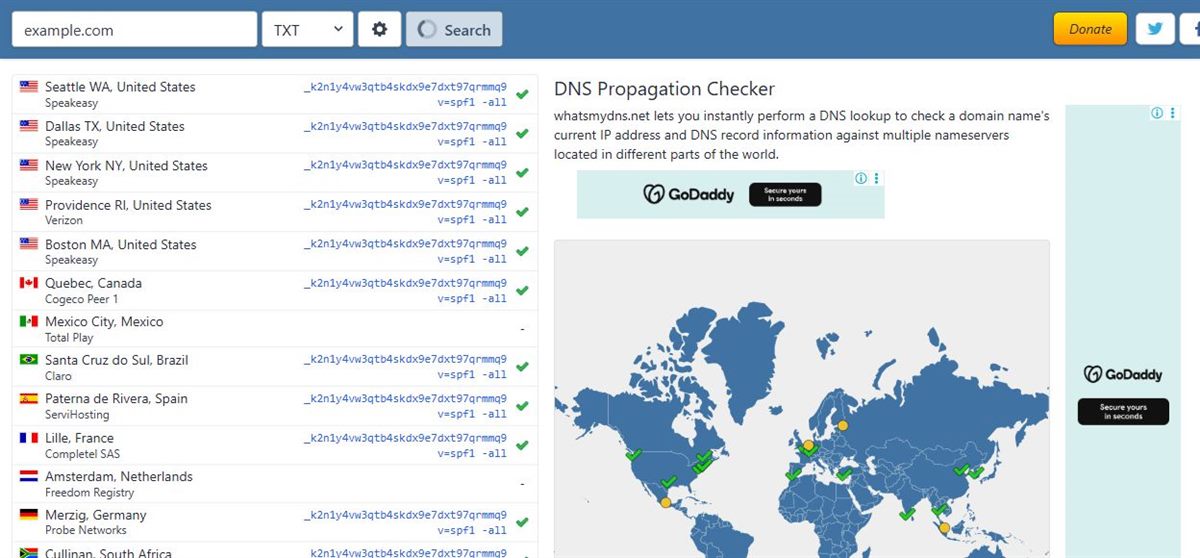
The screenshots here use the reserved example domain example.com. They show an interface and a point-in-time lookup. Their addresses can change, and they are not a proposed configuration for your website.
What the map and status marks can tell you
The checker places results beside locations and on a map. Open a location’s detail when you need to inspect its response. A successful lookup is useful evidence about that server’s answer at that moment. It does not represent a test from every internet connection in the surrounding country.
A missing or unsuccessful response needs interpretation. First check the hostname and selected type. The record may not exist, the queried server may not answer, or the DNS configuration may have a problem. A red mark alone does not identify which explanation applies.
Different answers can also be legitimate. A hostname may have several addresses, and services can return different answers according to their routing arrangements. Compare the result with the configuration your provider expects before treating every difference as a fault.
Why an older answer may still appear
DNS resolvers cache answers. A record’s time to live, usually called TTL, describes how long it may be cached under normal operation. Changing the authoritative record does not instantly replace every previously cached answer.
If you lower a TTL after a resolver has already cached an answer, that resolver does not automatically learn about your new shorter setting. Planning a lower TTL before a migration gives old cached records time to expire before the actual destination changes. Follow your DNS provider’s migration guidance for the records involved.
Nameserver changes introduce another question: which servers are authoritative now? Editing a zone in an old hosting account will not update the active zone if the domain is delegated to another provider. Establish where the authoritative records live before repeatedly editing values.
A practical troubleshooting sequence
Start at the DNS provider. Confirm that you saved the record under the correct zone and hostname. Check the record type, value, and TTL. Then compare the nameservers configured at the registrar with the DNS provider you intended to use.
Next, run the public lookup. If locations disagree, keep a record of the answers and the time. If every location returns the same unexpected value, investigate the authoritative configuration instead of assuming the checker simply needs more time.
Finally, separate local symptoms from public DNS results. Your device, browser, operating system, or network may have its own cached information. Google’s Public DNS troubleshooting guide explains ways to compare responses and investigate resolution failures. Use read-only checks before changing your network settings.
When DNS looks correct but the service still fails
A browser must do more than resolve a name. It also needs to reach the destination, establish the appropriate connection, and receive a usable response from the server. A certificate problem, an application error, or a missing page can remain after the DNS answer is correct.
Email has additional configuration too. An MX lookup helps identify mail destinations, but it does not prove that a mailbox exists or that all message-authentication settings are correct. Check the specific records and account settings your email provider requires.
For a website move, keep a short checklist covering the hostname, DNS answer, HTTPS response, and the page you actually need. Shifted Magazine’s technology guides cover related troubleshooting, while our tools directory helps readers find other utilities.
Keep a short change record
Before changing a record, save the hostname, record type, previous value, intended value, and the time of the edit. Record which DNS provider received the change. This gives a support engineer something more useful than a screenshot of mixed green and red markers.
If the results remain inconsistent, repeat the same hostname and record type rather than changing several settings at once. Compare the actual answers with the value your hosting or email provider supplied. Keep website, email, and verification checks separate, since a successful lookup for one record does not confirm that the other services are configured correctly.
Frequently asked questions
Is WhatsMyDNS free?
The public DNS propagation checker is available without a paid account. It accepts a hostname and record type through its main search form.
Does a green result mean my website is online?
It means the DNS check returned a successful result for that query. Test the website separately and confirm that the returned DNS value is the intended one.
How long should a DNS change take?
There is no single deadline that fits every change. Cached answers, their previous TTLs, delegation changes, and configuration errors can affect what you see. Check the authoritative settings and compare timed results.
Should I check both the root domain and www?
Yes, when both names are used by your website. They are separate hostnames and may depend on different record configurations.
Can WhatsMyDNS change my records?
The lookup form checks responses. To edit a record, use the account that manages the domain’s authoritative DNS zone.
Why does one location show a different address?
It may reflect caching, multiple valid addresses, routing differences, or a problem requiring investigation. Compare the actual answer with your provider’s expected configuration before deciding what to change.



Best Wireless Earbuds Under $200 in 2024: 7 Top Picks for Sound, ANC and Battery Life

Why Travel eSIMs Suit the Way We Travel Now

Heather Arranie on HealthSciencesForum: How to find and read the articles

Best Shapewear for Desk Jobs: What Doesn’t Dig In, Roll Down or Show Through After Eight Hours

BacktoFrontShow pricing: What Basic, Pro and Enterprise cost
-

 Business2 months ago
How to Choose an Ergonomic Office Chair for Women That Actually Fits
-

 Entertainment2 months ago
Top Movies and TV Shows in the US: JustWatch September 2026 Streaming Charts
-

 Home Improvement2 months ago
5 Best Indoor Air Quality & Mold Companies in Houston (2026)
-

 Tech1 month ago
The Spreadsheet Habit That Quietly Breaks Business Dashboards as Teams Scale