
Web Development
Web development best practices: A practical checklist before launch
Build reliable websites with practical checks for accessibility, responsive layouts, performance, security, testing, and deployment.

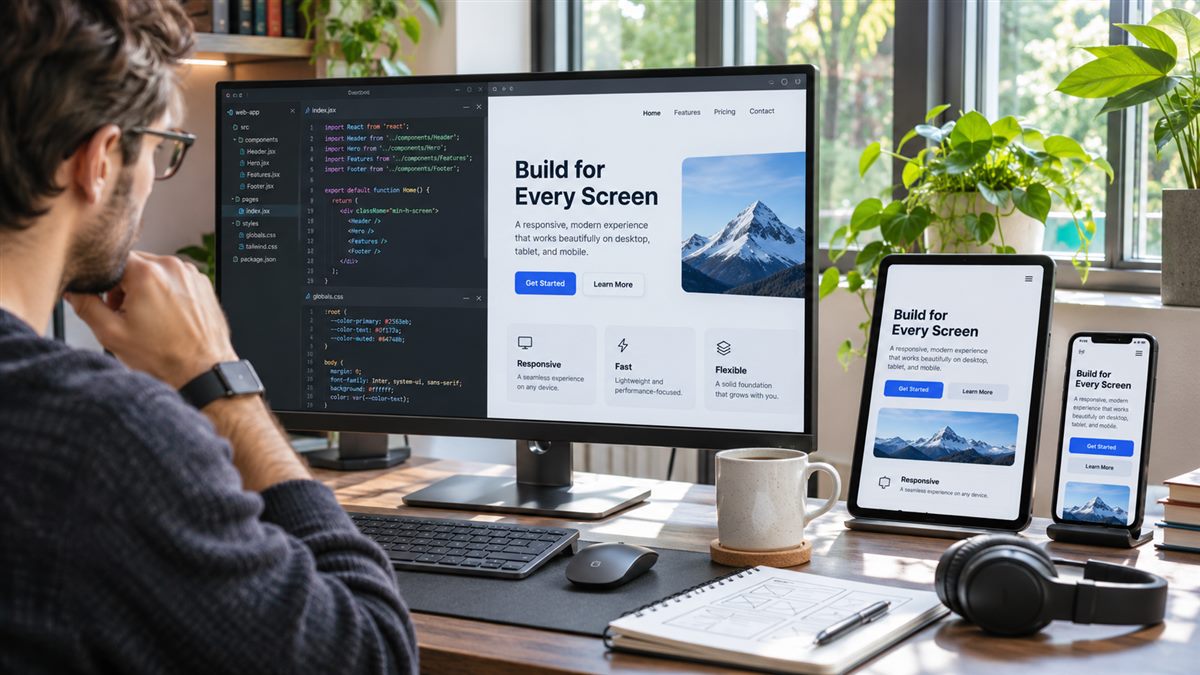
Good web development practices make a site easier to use, maintain, and recover when something fails. Start with the tasks people need to complete, build those tasks with accessible HTML, and test the result on real devices. Performance, security, and deployment checks belong in that work from the beginning.
A launch can look successful on a developer’s monitor while a customer cannot submit the contact form on a phone. A useful checklist follows the customer’s path through the site and asks what happens when the connection is slow, an input is wrong, or a service is unavailable. The checks below apply across frameworks and content management systems.
Define the page’s job before choosing its components
Write down the action a visitor should be able to complete on each important page. For a service business, that might be understanding the offer, checking the service area, and requesting a quote. For an account page, it might be updating a delivery address without losing existing information.
Turn each task into an acceptance check. “The form works” is vague. “A visitor can submit a valid request, sees confirmation, and receives a useful error if submission fails” gives the developer and reviewer something concrete to inspect. Include the empty, loading, success, and failure states in the design.
Keep a short inventory of routes and shared components. Decide who maintains the navigation, form styles, and page templates. A shared component helps when it represents the same behavior across the site; a collection of unrelated exceptions inside one component can make changes harder to reason about.
Use HTML that explains the interface
Choose elements according to their purpose. A button performs an action; a link takes someone to a destination. Give pages a descriptive title and a heading structure that reflects the content. Use real lists for lists and table headers for tabular data.
The W3C accessibility tutorials explain practical patterns for page structure, images, forms, and tables. Start with those patterns before adding custom interaction. Native controls already provide useful browser behavior that a custom replacement may have to recreate.
Give every form control an associated label. A placeholder can provide an example, but it disappears during entry and should not carry the entire instruction. Put requirements where they are available before a person makes a mistake. When validation fails, identify the field and describe how to fix it.

Check accessibility with a keyboard and human judgment
Unplug the mouse for a short review. Move through the page with Tab and Shift+Tab, activate controls, and close any dialog. The focus indicator should remain visible, the order should make sense, and a visitor should be able to leave a control without getting trapped.
Review image alternatives according to the image’s purpose. A meaningful diagram needs an explanation of the information it conveys. A decorative image may need an empty alternative. Repeating a filename or stuffing keywords into alt text helps neither the reader nor the task.
Run an automated accessibility check, then inspect issues that automation cannot settle: whether a label is understandable, whether a dialog returns focus sensibly, and whether the page remains usable when text is enlarged. Record the tested page and interaction, rather than treating a single score as evidence that the whole site is accessible.
Make responsive layouts survive real content
Test the layout with a long heading, a long email address, and an error message that occupies more than one line. These are ordinary inputs that can expose fixed heights and widths. Let content grow vertically, and check that navigation and primary actions remain reachable.
Use appropriately sized images rather than sending every device the largest file. Preserve the image’s aspect ratio and reserve its space so surrounding content does not jump when it loads. Check the crop on a narrow screen; the relevant subject should remain visible.
Responsive testing should include at least one actual phone. A desktop viewport preview is convenient for layout work, but it does not reproduce every touch, keyboard, or browser behavior. Try the primary form, menu, and any sticky element with the phone’s on-screen keyboard open.

Measure performance where visitors experience it
Google’s Core Web Vitals guidance defines good thresholds as Largest Contentful Paint at 2.5 seconds or less, Interaction to Next Paint at 200 milliseconds or less, and Cumulative Layout Shift at 0.1 or less. Assessment uses the 75th percentile of page visits, with mobile and desktop considered separately.
Use laboratory tools to investigate a page before release, then review field data when enough real visits are available. A fast local result on a powerful computer does not establish how the page performs for everyone. Look at the largest content element, delayed interactions, and unexpected movement individually.
Before adding another script, ask what it does for the visitor and who will maintain it. Compress images, remove unused dependencies where practical, and investigate expensive work on the main thread. Change one likely cause at a time and compare the same interaction under similar conditions.
Treat client input as untrusted
Browser validation gives quick feedback, but it is not a security boundary. Validate data on the server as well. Check expected types, permitted values, lengths, and ranges, and apply authorization to the requested action. A person who can view their own order should not gain access to another order by changing an identifier.
Input validation does not replace safe database queries or appropriate output encoding. Keep those protections at the point where data is used. Avoid putting secrets into client-side code, public repositories, screenshots, or error messages. Use a configuration process that keeps production credentials out of the shipped browser bundle.
Maintain an inventory of dependencies and update them through a reviewable process. If an update changes behavior, test the affected paths. An abandoned package that handles authentication deserves more attention than a cosmetic dependency with no access to user data.
Test the failures that matter
| Area | Useful check | Evidence to keep |
|---|---|---|
| Primary task | Complete the main journey with valid and invalid input | Result, browser, and relevant test case |
| External service | Inspect a timeout or unavailable response | User-visible message and retry behavior |
| Authorization | Try an action outside the account’s permissions | Denied response without data disclosure |
| Deployment | Verify the released version and rollback procedure | Release identifier and recovery steps |
Automate checks that protect important behavior and are likely to catch a regression. A test that merely repeats the implementation can pass while the customer’s task remains broken. Keep a small, dependable set of end-to-end checks for the journeys that would cause the most trouble if they failed.
Logging should help diagnose a problem without exposing sensitive information. Record enough context to connect an error with the affected operation, and decide who receives alerts. An alert without an owner can sit unanswered even when the monitoring system is technically working.
Prepare the release and the recovery
Check configuration differences between development and production. Confirm redirects, canonical URLs, robots directives, and error pages on the released site. A staging instruction that blocks indexing should not accidentally become the production configuration.
Back up data through a process whose restore path has been checked. Define how to revert the application and what happens to database changes during that recovery. Keep the release small enough that a reviewer can understand its effect.
For further reading, explore our web development articles and the guide to planning legacy software modernization. Maintenance decisions are easier when the team understands how the current system is deployed and supported.
Frequently asked questions
Which web development practices should a small site prioritize?
Start with its main visitor task, accessible navigation and forms, mobile layout, secure server handling, and a reliable release process. Add complexity when a real requirement justifies it.
Does a perfect automated score prove a site is ready?
No. Automated tools check a defined set of conditions. They cannot establish that a customer understands the offer, completes a task, or receives a useful response when a service fails.
Should every interaction have an automated test?
Choose tests according to the consequence and likelihood of failure. Important account, payment, and submission paths need stronger protection than low-impact decorative changes.
How often should the checklist be used?
Use the relevant checks during development and before releases. Revisit performance and accessibility after significant content, dependency, or layout changes.



Best Wireless Earbuds Under $200 in 2024: 7 Top Picks for Sound, ANC and Battery Life

Heather Arranie on HealthSciencesForum: How to find and read the articles

Best Shapewear for Desk Jobs: What Doesn’t Dig In, Roll Down or Show Through After Eight Hours

BacktoFrontShow pricing: What Basic, Pro and Enterprise cost

Tech On Dicas: Which site are you looking for?
-

 Business2 months ago
How to Choose an Ergonomic Office Chair for Women That Actually Fits
-

 Entertainment2 months ago
Top Movies and TV Shows in the US: JustWatch September 2026 Streaming Charts
-

 Home Improvement2 months ago
5 Best Indoor Air Quality & Mold Companies in Houston (2026)
-

 Tech2 months ago
The Spreadsheet Habit That Quietly Breaks Business Dashboards as Teams Scale