
Tech
WhatsApp Chat Theme Not Showing? How to Fix It
Fix a missing WhatsApp chat theme setting with safe update, settings, rollout, backup, and troubleshooting steps for Android and iPhone.

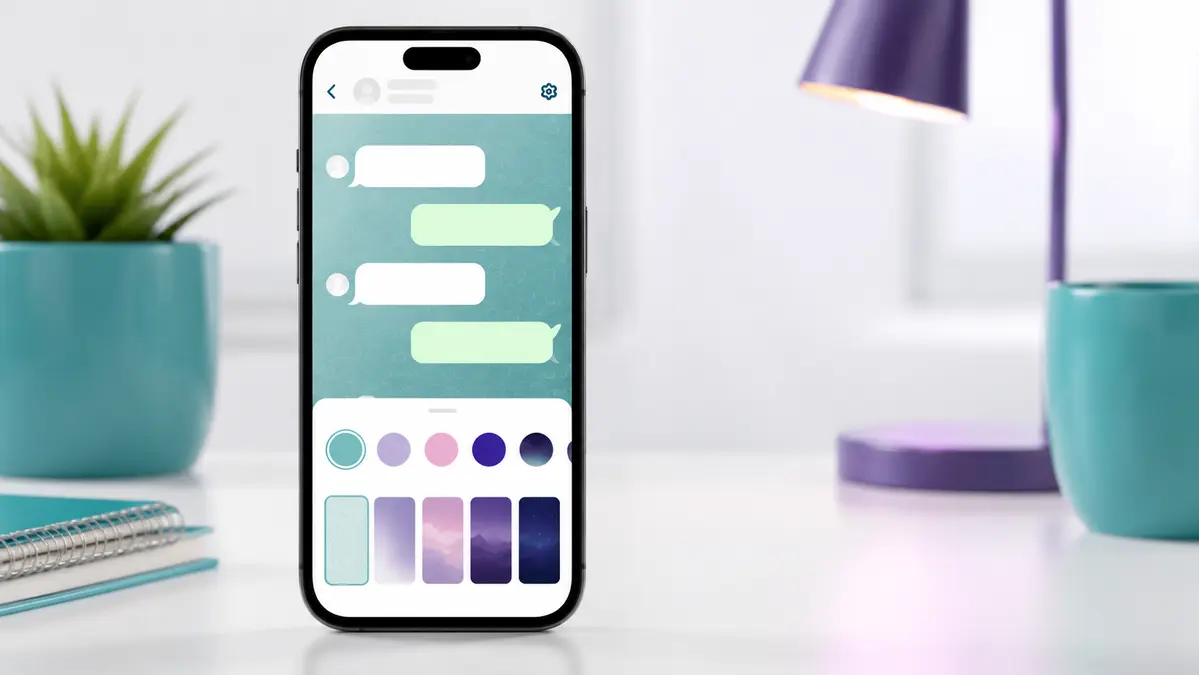
WhatsApp chat themes let users change the appearance of message bubbles and chat backgrounds. The option is useful because a theme can be set for all chats or adjusted for one conversation. However, many users search for help when the Chat theme or Default chat theme option does not appear in Settings.
This guide explains where the setting should be, why it may be missing, and which checks are safe to try. It is written for both Android and iPhone users and is based on WhatsApp’s public help guidance. The exact screen labels can differ slightly by device, app version, language, and rollout status.
Quick answer
If the chat-theme setting is not showing, first update WhatsApp from the official app store and reopen the app. Then look in Settings under Chats or Appearance, depending on your version. If the option still does not appear, it may not yet be available to your account, device, or region. Do not install a modified APK or a third-party “theme unlocker” to force it to appear.
What WhatsApp chat themes do
Chat themes change the colours used in a conversation and can pair them with wallpaper choices. They are designed as a personal display setting. Changing a theme does not alter how another person sees their own chat screen, and it does not change your messages, backups, contacts, or privacy settings.
WhatsApp announced chat themes in February 2025 with preset themes and wallpapers. Its public instructions say that users can set a default look for chats and channels or customise a single conversation. The company also provides an option for AI-generated chat themes in supported versions. Features can be released in stages, so a setting visible on one phone may not be visible on another phone on the same day.
Where to find the setting
Start by checking the normal in-app locations. The exact menu can be different between Android and iPhone, and WhatsApp may change labels after an update.
| Device | General path to check | What it changes |
|---|---|---|
| Android | Open WhatsApp, tap the three-dot menu, then Settings. Look under Chats or Appearance for Default chat theme. | Applies a default theme to your chats, where available. |
| iPhone | Open WhatsApp, tap Settings, then Chats or Appearance. Look for Default chat theme. | Applies a default theme to your chats, where available. |
| Single conversation | Open the chat, tap the contact or group name, then look for Chat theme. | Changes that one conversation only. |
WhatsApp’s current help page for changing themes points users to Settings, Appearance, and Default chat theme. If you cannot see the same wording, check both Chats and Appearance. App menus may be arranged differently by operating system or testing group.
Why the option may not be showing
A missing setting does not always mean that something is wrong with the phone. The most common reason is a phased release. Major messaging-app changes are sometimes enabled gradually so the company can monitor performance and solve problems before every account receives the feature. Updating the app is important, but it does not guarantee immediate access when the server-side rollout has not reached an account.
Other common reasons include an out-of-date app version, a device operating system that no longer supports the newest WhatsApp release, a temporary app problem, or a version installed from an unofficial source. In some cases, users are searching for a setting under the wrong menu because a tutorial was recorded on a different device.
- The feature has not reached your account yet.
- Your WhatsApp app needs an update from the Play Store or App Store.
- You are checking a guide made for another operating system or an older version.
- Your phone software is too old for the latest app release.
- The app has a temporary loading or cache issue.
- An unofficial version of the app is limiting or changing normal features.
Safe steps to try first
Work through the steps below in order. They are simple and do not remove chats or change your account. Avoid deleting WhatsApp or clearing app storage until you have checked that your chat backup is current and you understand what will be removed.
- Update WhatsApp from Google Play or the Apple App Store. Do not use download links sent in messages or videos.
- Close the app fully and open it again after the update.
- Restart the phone. This can fix temporary loading issues and refresh app services.
- Check both the global theme path and an individual chat’s information screen.
- Confirm that your phone’s operating system has available updates.
- Make sure you use the official WhatsApp application and not a modified version.
- Wait and check again later if the feature is part of a gradual release.
On Android, clearing a temporary cache may help when an app is not loading correctly, but do not clear storage unless you know your backup status. On iPhone, closing and reopening the app, updating iOS, and restarting the device are safer first checks. If you need to reinstall WhatsApp, make a current chat backup first and follow the official restore process.
Do not use unofficial APK files or theme unlockers
Search results often include websites claiming to offer a special theme version, a premium theme pack, or an instant unlock. These downloads are not needed for an official setting and can create real risks. A modified app may contain ads, tracking, malware, or code that can affect messages and account access. It can also stop working after WhatsApp updates its security checks.
If you use Android, our guide on downloading APK files safely explains why app-store sources and careful file checks matter. For WhatsApp itself, the safest choice is still the official Play Store, App Store, or the official WhatsApp website. Do not share a verification code with anyone who says they can activate a theme for you.
How to check whether it is a rollout issue
There is no reliable setting that forces a company to enable an account-level feature. You can compare the current app version, check the official WhatsApp Help Center and blog, and see whether the feature description matches what you expect. If the official instructions mention a staged release or if people with the same current version have different menus, waiting may be the only correct solution.
A useful test is to look at the same account on your normal device after an official update, not to sign into unknown apps or change phone-region settings. Account experiments, region settings, and beta programmes may affect which features you see, but they are not guaranteed fixes and can introduce other issues. A stable official release is normally the best choice for everyday chats.
How to set a theme once it appears
When the option becomes available, open the default theme setting to choose a preset appearance for your chats. You can usually select a colour and wallpaper combination. To personalise one conversation, open that chat and use its contact or group information menu. Pick a theme, preview it, and save the selection.
Remember that themes are visual preferences. They do not add end-to-end encryption, change who can see your messages, or provide extra account security. Keep privacy controls separate from appearance settings. The same principle applies when using third-party front ends or tools: understand what a service changes before connecting an account or sharing data. Our Libreddit privacy guide provides a practical example of why interface choices and privacy choices should be reviewed separately.
When to contact WhatsApp support
Contact support through the official app or Help Center if the setting disappeared after being available, the app repeatedly crashes, or you see an account or security warning. Include useful details such as your phone model, operating system version, WhatsApp version, and a short description of the menu you see. Do not include verification codes, private chat contents, or personal documents.
If the feature is simply absent and the app is working normally, support may confirm that it is still being released. Keep the app updated and check the official feature pages from time to time. A clear, current guide can help with the menu path, but it cannot override a release schedule controlled by the app provider.
Frequently asked questions
Why does my friend have themes but I do not?
Features can be released gradually. Your friend may have a different app version, phone platform, account group, or rollout status. Updating helps ensure compatibility, but it may not enable the option immediately.
Will changing my phone region make the setting appear?
Changing phone-region settings is not a reliable method and may affect other services. Use the official app, update it, and wait for the release instead.
Will I lose chats if I update WhatsApp?
A normal app update should not remove chats. Before any reinstall or storage reset, check that you have a recent backup and understand the official restore steps.
Can another person see the theme I choose?
WhatsApp states that chat themes are only visible to the person who applies them. They are a personal display preference.
Final takeaway
When WhatsApp chat themes are not showing, begin with the official settings path, update the app, restart the device, and give a staged release time to reach your account. Avoid unofficial APKs, theme unlockers, and anyone asking for verification codes. The safest fix is usually a current official app and a little patience, not a risky download.
Editorial note: WhatsApp menus and feature availability can change after updates. This guide reflects the public WhatsApp Help Center and feature information available in August 2026.



How to Choose an Ergonomic Office Chair for Women That Actually Fits

Top Movies and TV Shows in the US: JustWatch September 2026 Streaming Charts

5 Best Indoor Air Quality & Mold Companies in Houston (2026)

The Spreadsheet Habit That Quietly Breaks Business Dashboards as Teams Scale

The White Lotus Season 4 in France: Filming Locations, Cast, Plot and 2027 Release Date
-

 Celebrity1 month ago
Eileen Gu: Age, Parents, 2026 Olympics, Modeling Career, Height and Personal Life
-

 Tech1 month ago
18Moa – Website Directories, Online Discovery, and Safer Browsing
-

 Animals1 month ago
Understanding the American XL Bully Ban in the UK: Rules and Changes in 2026
-

 Entertainment2 months ago
Flujo TV: What it is, How It Works, Features, Devices, and Safety